

Introduction
Redmine is an open source issue tracking system similar to tools such as Jira and Bugzilla that we use at Inesonic. Redmine includes a wide range of plugins making the tool incredibly versatile. Being open source, Redmine has also proven to be very flexible and cost effective.
Redmine also provides a flexible REST API that we use to tie Redmine directly to our website using the inesonic-redmine plugin that we developed in-house.
You may want to consider using a paid service for your Redmine server. of note is planio. Planio also kindly provides a Redmine security scanner that we will use near the bottom of this post.
We are in the process of migrating our servers to a new cloud provider. During that process we also updated Redmine from version 4.2 to 5.0. Configuring a server with Redmine 5.0 provided more difficult due to new dependencies and issues.
This post attempts to capture the learning from that effort. Note that we found the following resources useful during the process:
- Installing Redmine – Redmine Wiki
- Download Redmine – Redmine Wiki
- Install Redmine on Ubuntu 22.04 – By koromicha
Note that I’ve highlighted what you should enter on the command line in yellow.
Getting Started – Basic Server Configuration
You should begin by provisioning a cloud based server using your preferred cloud provider. The server should meet the following minimum requirements:
- At least 1 vcpu
- At least 1GB of RAM
- At least 20GB of storage — You’ll likely need more as your database grows.
- Server should run Ubuntu Server 22.04
Once the server is provisioned, login to a sudo enabled account and run the following commands to install key packages:
$ sudo apt-get upgrade
$ sudo apt-get install ruby ruby-dev apache2 libapache2-mod-passenger certbot python3-certbot-apache build-essential mysql-server mysql-client libmysqlclient-dev git subversion
You may also want to install your editor of choice. For emacs, you would use:
$ sudo apt-get install emacs-nox
Configure an administrative account with public key authentication over ssh.:
$ sudo adduser admin
Adding user `admin’ …
Adding new group `admin’ (1001) …
Adding new user `admin’ (1000) with group `admin’ …
Creating home directory `/home/admin’ …
Copying files from `/etc/skel’ …
New password: <Enter your admin account password here>
Retype new password: <Re-enter your admin account password here>
passwd: password updated successfully
Changing the user information for admin
Enter the new value, or press ENTER for the default
Full Name []: Administrator
Room Number []:
Work Phone []:
Home Phone []:
Other []:
Is the information correct? [Y/n] Y
and give the account root access through sudo:
$ usermod -aG sudo admin
We recommend that you setup a unique public/private key pair for each account and force ssh to use public key authentication. You should also disable root access over ssh if your cloud provider’s default Ubuntu install includes a root account you can log into.
$ cd
$ mkdir .ssh
$ chmod 700 .ssh
$ ssh-keygen -t rsa
Generating public/private rsa key pair.
Enter file in which to save the key (/home/admin/.ssh/id_rsa): admin_keys
Enter passphrase (empty for no passphrase):
Enter same passphrase again:
Your identification has been saved in /home/admin/.ssh/id_rsa
Your public key has been saved in /home/admin/.ssh/id_rsa.pub
The key fingerprint is:
SHA256:yCpiV8qk2JUbQn2dsPG+OaCULscmNZSB05+gDCoLQrA admin@localhost
The key’s randomart image is:
+—[RSA 3072]—-+
|o o. o |
|.oo.oo * . |
|Eo.o+oo.+ |
|=.o. =oo |
|+…O.+ S |
|o.+Bo* . o |
|oo=+O + |
|…* . |
| |
+—-[SHA256]—–+
$ mv admin_keys admin_keys.pem
$ tar -cvzf ~/admin_keys.tar.gz admin_keys.pem admin_keys.pub
$ mv admin_keys.pub .ssh/authorized_keys
$ chmod 600 .ssh/authorized_keys
$ rm admin_keys.pem
The commands above will configure your admin account to use public key authentication. The public/private key pair will be stored in the admin_keys.tar.gz file placed in the admin account login directory.
You should copy the admin_keys.tar.gz tarball to your local system and save the keypair off somewhere. Note that the private key (the .pem file) will be needed to log into the server shortly.
Depending on your cloud provider, you may also need to configure secure shell to only allow public-key authentication. Review the file /etc/ssd/sshd_config using the command:
$ sudo emacs /etc/ssh/sshd_config
Verify that the following lines are set as follows and change if needed:
UsePAM no
PermitRootLogin no
PasswordAuthentication no
ChallengeResponseAuthentication no
Note that the lines may be distributed throughout the file. You may also choose to use an editor other than emacs.
Update the server’s host name and reboot the server so that all your updates as well as any downloaded updates take effect.
$ hostnamectl hostname <server name>
$ reboot
In short order, you will be booted off the server.
Once the server has rebooted, log back into the server using your admin account and private key. On Linux and MacOS, you would do this using the command:
$ ssh -i admin_keys.pem admin@<my server>
The authenticity of host ‘redmine.mydomain.com (xxx.xxx.xxx.xxx)’ can’t be established.
ECDSA key fingerprint is SHA256:yCpiV8qk2JUbQn2dsPG+OaCULscmNZSB05+gDCoLQrA.
Are you sure you want to continue connecting (yes/no/[fingerprint])? yes
Warning: Permanently added ‘<my server>’ (ECDSA) to the list of known hosts.
Enter passphrase for key ‘/home/me/admin_keys.pem’: <enter your passphrase here>
Last login: Fri Jul 22 17:37:08 2022 from yyy.yyy.yyy.yyy
$
If your hosting provider, like AWS, creates a non-root default account, you may want to delete that account now.
$ userdel ubuntu
Configuring Apache For Redmine
In the past we used nginx with Redmine due to the smaller footprint and simplier configuration. NGINX with passenger was great at serving Redmine’s Ruby scripts. Installing passenger on Ubuntu 22.04 is now more difficult so we’ve opted to use Apache instead. This also allows us to run multiple services, including Redmine on a single larger server.
If you didn’t install Apache2 with mod-passenger as described above, do so now by runnng the command:
$ sudo apt-get install apache2 libapache2-mod-passenger
Enable and start the Apache2 service.
$ sudo systemctl enable apache2
$ sudo systemctl start apache2

We setup services to run under a specific user account rather than the default www-data account used by Apache and nginx. We do this so the website administrator can login under that specific account should they need to manage the site through a command line without being able to impact other services running on the same server.
You should start by adding a user for redmine:
$ sudo adduser redmine
Adding user `redmine’ …
Adding new group `redmine’ (1002) …
Adding new user `redmine’ (1001) with group `redmine’ …
Creating home directory `/home/redmine’ …
Copying files from `/etc/skel’ …
New password: <Enter your redmine account password here>
Retype new password: <Re-enter your redmine account password here>
passwd: password updated successfully
Changing the user information for redmine
Enter the new value, or press ENTER for the default
Full Name []: Redmine
Room Number []:
Work Phone []:
Home Phone []:
Other []:
Is the information correct? [Y/n] Y
As before, create a unique public/private key pair for the Redmine acount.
$ cd
$ mkdir .ssh
$ chmod 700 .ssh
$ ssh-keygen -t rsa
Generating public/private rsa key pair.
Enter file in which to save the key (/home/redmine/.ssh/id_rsa): redmine_keys
Enter passphrase (empty for no passphrase):
Enter same passphrase again:
Your identification has been saved in redmine_keys
Your public key has been saved in redmine_keys.pub
The key fingerprint is:
SHA256:4CXssSigjMtz6ZwEyUdHPCRy5Xpn31Rk611zsDx6zR8 redmine@redmine
The key’s randomart image is:
+—[RSA 3072]—-+
| . o++ o. |
| o ++ o..o |
|. . o* . o+.o|
|=.o o+ * o..++|
|o=.o..+oS ….Eo|
|..o.o o . o . o|
|.o + . . .|
| * . |
| + |
+—-[SHA256]—–+
$ mv redmine_keys redmine_keys.pem
$ tar -cvzf ~/redmine_keys.tar.gz redmine_keys.pem redmine_keys.pub
$ mv redmine_keys.pub .ssh/authorized_keys
$ chmod 600 .ssh/authorized_keys
$ rm redmine_keys.pem
As user redmine, create a directory for your live site and then insert a test file to be used later to validate the Apache configuration.
$ sudo -u redmine bash -c ‘echo “Woo-Hoo ! It works !” >/home/redmine/live/test/index.html’
Identify the lines that look like:
export APACHE_RUN_USER=www-data
export APACHE_RUN_GROUP=www-data
and change them to:
export APACHE_RUN_USER=redmine
export APACHE_RUN_GROUP=redmine
Confirm that the passenger module is enabled. We also typically install the auth_basic module so we can password protect sites during development.
ServerName <my-site-domain>
ServerAlias www.<my-site-domain>
DocumentRoot /home/redmine/live/test
ServerAdmin <website-administer-email-address>
ErrorLog ${APACHE_LOG_DIR}/error.log
CustomLog ${APACHE_LOG_DIR}/access.log combined
</VirtualHost>
<Directory “/home/redmine/live/test”>
Allow from all
Require all granted
</Directory>
Now enable the site, disable the default site, and confirm that your Apache2 configuration is valid.
$ sudo a2ensite <my-site-domain>
Enabling site <my-site-domain>.
To activate the new configuration, you need to run:
systemctl reload apache2
$ sudo a2dissite 000-default
Site 000-default disabled.
To activate the new configuration, you need to run:
systemctl reload apache2
$ sudo apache2ctl -T
AH00558: apache2: Could not reliably determine the server’s fully qualified domain name, using 2607:f1c0:1801:77::1. Set the ‘ServerName’ directive globally to suppress this message
httpd (pid 895) already running
Syntax OK
Confirm the line in cyan indicating that the configuration syntax is OK.
Rstart your Apache2 server. Note that a restart is required because the Apache2 user and group was changed above.
You should now be able to point your browser to your site to see your test page.
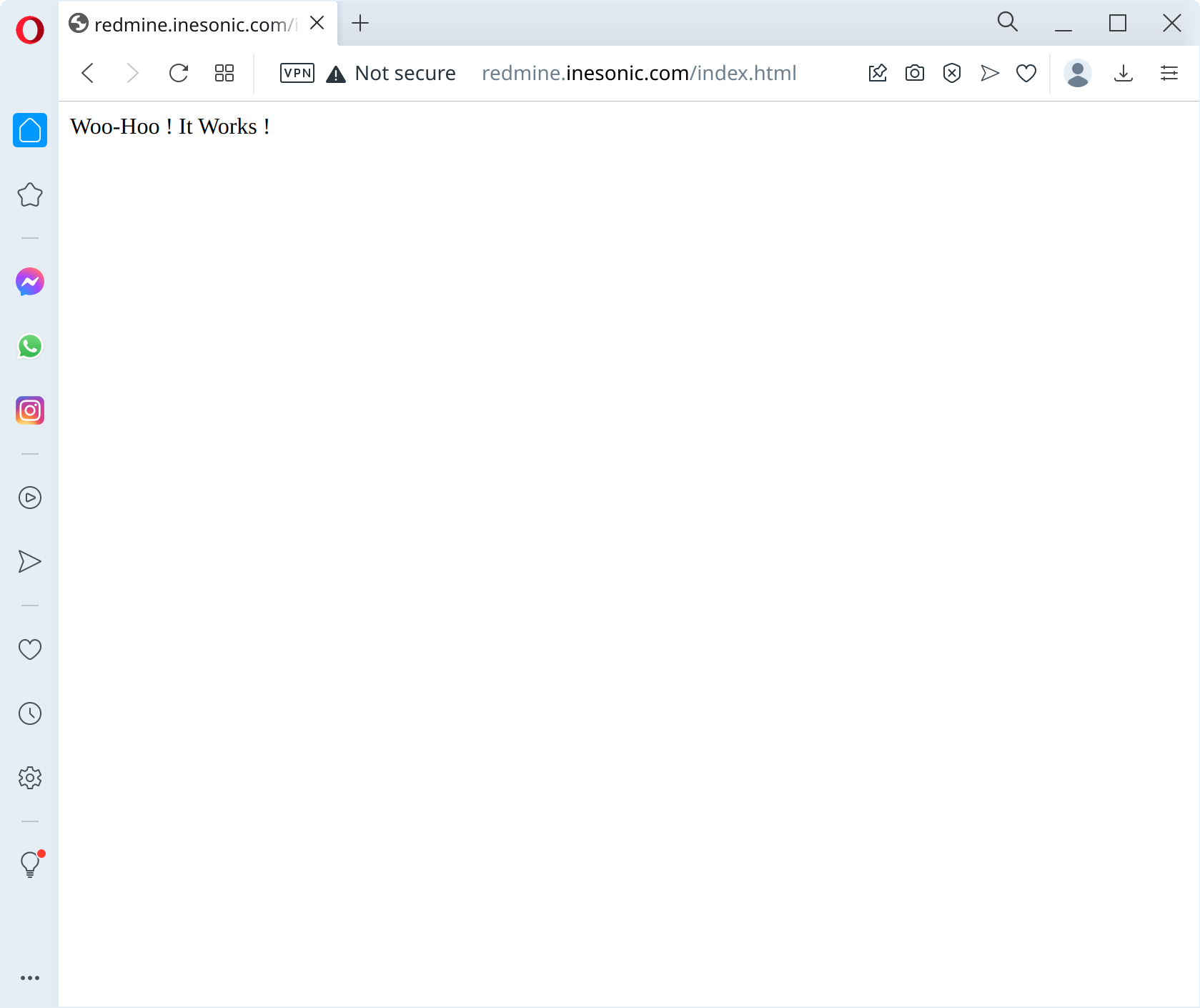
Installing SSL Certificates
Having Apache2 running is nice but we really need our site to be secure and thus want to install SSL certificates.
We *could* spend money and go to a certificate authority such as Sectigo; however, doing so costs money (we currently do use Sectigo for our Windows application signing certificates). For this scenario, we’ll use certificates from Let’s Encrypt which offers free SSL certificates.
We can use certbot on Linux to largely automate the process of issuing and installing certificates. If you haven’t already done so, install the needed packages:
Checkout or download the latest source from the Inesonic certbot-helpers project (https://github.com/inesonic/certbot-helpers) and copy shell scripts and renew_certificates.py Python script into /etc/letsencrypt. Also copy the renew_certificates.service file into /etc/systemd/system/.
$ git clone https://github.com/inesonic/certbot-helpers.git
$ cd certbot-helpers
$ sudo cp create_certificates.apache renew_certificates renew_certificates.py /etc/letsencrypt/
$ sudo cp renew_certificates.service /etc/systemd/system/
You can now create certificates for your site by running the command:
$ sudo /etc/letsencrypt/create_certificates.apache
Saving debug log to /var/log/letsencrypt/letsencrypt.log
Enter email address (used for urgent renewal and security notices)
(Enter ‘c’ to cancel): <your email address>
– – – – – – – – – – – – – – – – – – – – – – – – – – – – – – – – – – – – – – – –
Please read the Terms of Service at
https://letsencrypt.org/documents/LE-SA-v1.2-November-15-2017.pdf. You must
agree in order to register with the ACME server. Do you agree?
– – – – – – – – – – – – – – – – – – – – – – – – – – – – – – – – – – – – – – – –
(Y)es/(N)o: Y
– – – – – – – – – – – – – – – – – – – – – – – – – – – – – – – – – – – – – – – –
Would you be willing, once your first certificate is successfully issued, to
share your email address with the Electronic Frontier Foundation, a founding
partner of the Let’s Encrypt project and the non-profit organization that
develops Certbot? We’d like to send you email about our work encrypting the web,
EFF news, campaigns, and ways to support digital freedom.
– – – – – – – – – – – – – – – – – – – – – – – – – – – – – – – – – – – – – – – –
(Y)es/(N)o: Y
Account registered.
Requesting a certificate for <my-site-domain> and www.<my-site-domain>
Successfully received certificate.
Certificate is saved at: /etc/letsencrypt/live/<my-site-domain>/fullchain.pem
Key is saved at: /etc/letsencrypt/live/<my-site-domain>/privkey.pem
This certificate expires on 2022-10-21.
These files will be updated when the certificate renews.
Certbot has set up a scheduled task to automatically renew this certificate in the background.
Deploying certificate
Successfully deployed certificate for <my-site-domain> to /etc/apache2/sites-available/>my-site-domain>-le-ssl.conf
Successfully deployed certificate for www.<my-site-domain> to /etc/apache2/sites-available/<my-site-domain>-le-ssl.conf
Congratulations! You have successfully enabled HTTPS on https://<my-site-domain> and https://www.<my-site-domain>
We were unable to subscribe you the EFF mailing list because your e-mail address appears to be invalid. You can try again later by visiting https://act.eff.org.
– – – – – – – – – – – – – – – – – – – – – – – – – – – – – – – – – – – – – – – –
If you like Certbot, please consider supporting our work by:
* Donating to ISRG / Let’s Encrypt: https://letsencrypt.org/donate
* Donating to EFF: https://eff.org/donate-le
– – – – – – – – – – – – – – – – – – – – – – – – – – – – – – – – – – – – – – – –
$ cd /home/admin
$ git clone https://github.com/inesonic/certbot-helpers.git
$ cd certbot-helpers
$ sudo cp create_certificates.apache renew_certificates renew_certificates.py /etc/letsencrypt/
$ sudo cp renew_certificates.service /etc/systemd/system/
Verify the certificate is working by pointing a browser to your site (http method). The browser should be redirected to use the https method and the browser should indicate that the site is using SSL, mostly likely with a little lock icon.
As a final step, you’ll want to setup your system to automatically renew your certificates. To do so, simply run the commands:
$ sudo systemctl start renew_certificates
Setting Up MySQL For Redmine
Redmine can run with a number of database backends. Our legacy Redmine server runs on MySQL so, for this installation we will also use MySQL to simplify the database migration process.
If you haven’t done so above, install all the necessary pieces for MySQL.
$ sudo apt-get install mysql-server mysql-client
Next you will need to setup the Redmine account on MySQL. Run the MySQL command line client as root.
$ sudo mysql
[sudo] password for administrator: <Enter your admin password here>
Welcome to the MySQL monitor. Commands end with ; or \g.
Your MySQL connection id is 8
Server version: 8.0.29-0ubuntu0.22.04.2 (Ubuntu)
Copyright (c) 2000, 2022, Oracle and/or its affiliates.
Oracle is a registered trademark of Oracle Corporation and/or its
affiliates. Other names may be trademarks of their respective
owners.
Type ‘help;’ or ‘\h’ for help. Type ‘\c’ to clear the current input statement.
mysql>
Query OK, 1 row affected (0.10 sec)
mysql> CREATE USER ‘redmine’@’localhost’ IDENTIFIED BY ‘<mysql-redmine-password>’;
Query OK, 0 rows affected (0.18 sec)
mysql> GRANT ALL PRIVILEGES ON redmine.* TO ‘redmine’@’localhost’;
Query OK, 0 rows affected (0.02 sec)
mysql> FLUSH PRIVILEGES;
Query OK, 0 rows affected (0.01 sec)
MySQL will maintain binary logs used to replay database updates. These logs tend to accumulate over time chewing up available disk space and, in some cases, depleting all available storage space. To avoid this, we need to tell MySQL to flush binary logs older than two days.
Query OK, 0 rows affected (0.01 sec)
mysql> SHOW VARIABLES LIKE ‘binlog_expire_logs_seconds’;
+—————————-+——–+
| Variable_name | Value |
+—————————-+——–+
| binlog_expire_logs_seconds | 172800 |
+—————————-+——–+
1 row in set (0.08 sec)
Verify that the value shown in cyan matches the value set in the SET command.
As a final step, exit MySQL.
Bye
Restoring Old Redmine Database Data
If you’re migrating data from a previous, legacy, Redmine installation, you’ll want to extract the old Redmine data and restore it to the new Redmine server. On the old server, run:
$ sudo -c bash ‘cd <path-to-redmine-install> ; tar -cvzf redmine_files.tar.gz files’
$ sudo mv <path-to-redmine-install</redmine_files.tar.gz redmine_files.tar.gz
- a large text file containing the SQL required to restore your database, and
- a tarball containing all the user uploaded content.
Note that you may need to adjust the command if the Redmine database on the old server is not named “redmine“. Also be sure to replace <path-to-redmine-install> with the actual system path to the redmine installation directory on your old system.
Copy the files redmine_backup.sql and redmine_files.tar.gz to the admin account on your new Redmine server and run the command.
Note that part of the process of installing Redmine will include a step to perform a final data migration. We’ll also tep you through restoring the uploaded Redmine files in the next section.
Installing Redmine
Redmine is coded in Ruby and requires several Ruby packages. If you haven’t done so, install the Ruby interpreter, Ruby language headers needed to build modules, as well as several other key dependencies.
You also need to install Ruby’s bundle command using “gem“. One of the referenced sources suggests also installing io-wait and strscan through gem so we also do that here.
Log in as user “redmine”. You can do this from the admin account using the command:
$ sudo -u redmine bash
$ cd
If you haven’t already done so, create and enter the “live” directory and then checkout the latest stable release of Redmine 5 using Subversion. Subversion will allow us to more easily update Redmine as new bug fixes are introduced.
$ [ ! -d “/home/redmine/live” ] && mkdir /home/redmine/live
$ cd /home/redmine/live
$ svn co https://svn.redmine.org/redmine/branches/5.0-stable redmine-5.0
A redmine-5.0/test
A redmine-5.0/test/unit
A redmine-5.0/test/unit/document_test.rb
A redmine-5.0/test/unit/issue_import_test.rb
A redmine-5.0/test/unit/repository_git_test.rb
. . .
. . .
You should now find the directory “/home/redmine/live/redmine-5.0” on your system which contains the latest stable Redmine release.
If you’re updating from an old Redmine installation, you should restore the contents of the database, as discussed above, as well as restore the contents of the ‘files‘ directory. From your administrative account, using the ‘redmine_files.tar.gz‘ file created above, restore the files directory as shown below.
$ sudo mv redmine_files.tar.gz /home/redmine/live/redmine-5.0/redmine_files.tar.gz
$ sudo chown redmine:redmine /home/redmine/live/redmine-5.0/redmine_files.tar.gz
$ sudo -u redmine bash -c ‘cd /home/redmine/live/redmine-5.0 ; mv files files.old ; tar -xvzf redmine_files.tar.gz’
# Only run the next commands if everything above is successful.
$ sudo -u redmine bash -c ‘rm /home/redmine/live/redmine-5.0/redmine_files.tar.gz’
$ sudo -u redmine bash -c ‘rm -Rf /home/redmine/live/redmine-5.0/files.old’
Next you should enter the redmine-5.0/config top level directory and copy the example database config, creating a file named “/home/redmine/live/redmine-5.0/config/database.yml“. You should then edit the file to point Redmine to your running MySQL instance.
$ cd redmine-5.0/config/
$ cp database.yml.example database.yml
$ emacs database.yml
The resulting file should like like.
# Default setup is given for MySQL 5.7.7 or later.
# Examples for PostgreSQL, SQLite3 and SQL Server can be found at the end.
# Line indentation must be 2 spaces (no tabs).
production:
adapter: mysql2
database: redmine
host: localhost
username: redmine
password: “<mysql-redmine-password>“
# Use “utf8” instead of “utfmb4” for MySQL prior to 5.7.7
encoding: utf8mb4
development:
adapter: mysql2
database: development_redmine
host: localhost
username: redmine
password: “<mysql-redmine-password>“
# Use “utf8” instead of “utfmb4” for MySQL prior to 5.7.7
encoding: utf8mb4
# Warning: The database defined as “test” will be erased and
# re-generated from your development database when you run “rake”.
# Do not set this db to the same as development or production.
test:
adapter: mysql2
database: test_redmine
host: localhost
username: redmine
password: “<mysql-redmine-password>“
# Use “utf8” instead of “utfmb4” for MySQL prior to 5.7.7
encoding: utf8mb4
Change the items in yellow to match your MySQL configuration. As stated in the comments, be sure to honor indentation and always use 2 spaces, never tabs, when you indent.
The next step is to install all the Redmine dependencies using Ruby’s “bundle” command. Note that we are going to keep the dependencies under a “vendor/bundle” directory under the “redmine-5.0” directory.
$ cd ~/live/redmine-5.0/
$ bundle config set –local path ‘vendor/bundle’
$ bundle install
Fetching gem metadata from https://rubygems.org/………
Resolving dependencies…..
Fetching rake 13.0.6
Installing rake 13.0.6
Fetching concurrent-ruby 1.1.10
Installing concurrent-ruby 1.1.10
Fetching i18n 1.10.0
Installing i18n 1.10.0
Fetching minitest 5.16.2
Installing minitest 5.16.2
Fetching tzinfo 2.0.5
Installing tzinfo 2.0.5
Fetching zeitwerk 2.6.0
Installing zeitwerk 2.6.0
. . .
. . .
Post-install message from html-pipeline:
————————————————-
Thank you for installing html-pipeline!
You must bundle Filter gem dependencies.
See html-pipeline README.md for more details.
https://github.com/jch/html-pipeline#dependencies
————————————————-
Post-install message from rubyzip:
RubyZip 3.0 is coming!
**********************
The public API of some Rubyzip classes has been modernized to use named
parameters for optional arguments. Please check your usage of the
following classes:
* `Zip::File`
* `Zip::Entry`
* `Zip::InputStream`
* `Zip::OutputStream`
Please ensure that your Gemfiles and .gemspecs are suitably restrictive
to avoid an unexpected breakage when 3.0 is released (e.g. ~> 2.3.0).
See https://github.com/rubyzip/rubyzip for details. The Changelog also
lists other enhancements and bugfixes that have been implemented since
version 2.3.0.
Rails requires a secret key used for cookies and other items.
And redmine needs the Redmine database to be configured or migrated.
$ export RAILS_ENV=production
$ bundle exec rake db:migrate
== 20210704125704 AddTwofaRequiredToGroups: migrating =========================
— add_column(:users, :twofa_required, :boolean, {:default=>false})
-> 0.0476s
== 20210704125704 AddTwofaRequiredToGroups: migrated (0.0622s) ================
== 20210705111300 AddProjectsDefaultIssueQueryId: migrating ===================
— add_column(:projects, :default_issue_query_id, :integer, {:default=>nil})
-> 0.0206s
== 20210705111300 AddProjectsDefaultIssueQueryId: migrated (0.0209s) ==========
== 20210728131544 DropIsInChlogColumn: migrating ==============================
— remove_column(:trackers, :is_in_chlog)
-> 0.0240s
== 20210728131544 DropIsInChlogColumn: migrated (0.0243s) =====================
== 20210801145548 RemoveBccRecipientsSetting: migrating =======================
== 20210801145548 RemoveBccRecipientsSetting: migrated (0.0790s) ==============
== 20210801211024 RemoveOrphanedUserCustomValues: migrating ===================
== 20210801211024 RemoveOrphanedUserCustomValues: migrated (0.0069s) ==========
== 20211213122100 RemoveIdentityUrlFromUsers: migrating =======================
— remove_column(:users, :identity_url, :string)
-> 0.0246s
== 20211213122100 RemoveIdentityUrlFromUsers: migrated (0.0249s) ==============
== 20211213122101 DropOpenIdAuthenticationTables: migrating ===================
— drop_table(:open_id_authentication_associations)
-> 0.0108s
— drop_table(:open_id_authentication_nonces)
-> 0.0110s
== 20211213122101 DropOpenIdAuthenticationTables: migrated (0.0220s) ==========
== 20211213122102 RemoveOpenIdSetting: migrating ==============================
== 20211213122102 RemoveOpenIdSetting: migrated (0.0056s) =====================
== 20220224194639 DeleteOrphanedTimeEntryActivities: migrating ================
== 20220224194639 DeleteOrphanedTimeEntryActivities: migrated (0.0709s) =======
Also insert default data into the database as required by Redmine.
$ export RAILS_ENV=production
$ export REDMINE_LANG=en
$ bundle exec rake redmine:load_default_data
Some configuration data is already loaded.
At this point, Redmine should be fully configured. Next we’ll verify that Redmine works and direct Apache to serve Redmine.
Verifying Redmine And Final Configuration
To sanity check our Redmine installation, we’ll run webrick to verify that webrick can serve Redmine directly. Note that we do *not* want to use webrick for our production server.
=> Booting WEBrick
=> Rails 6.1.6.1 application starting in production http://0.0.0.0:3000
=> Run `bin/rails server –help` for more startup options
[2022-07-24 20:32:36] INFO WEBrick 1.7.0
[2022-07-24 20:32:36] INFO ruby 3.0.2 (2021-07-07) [x86_64-linux-gnu]
[2022-07-24 20:32:36] INFO WEBrick::HTTPServer#start: pid=8288 port=3000
At this point, if you have port 3000 open, you should be able to point your browser at your site, at port 3000 and see your Redmine install functioning.
When done, press CTRL-C to shut down the webrick server.
Assuming everything behaves similar to what’s shown above, we can now modify our Apache configuration to serve Redmine.
Log out of your redmine account and log into your admin account. From the admin account, modify the /etc/apache2/sites-available/<your-site-domain>.conf file you created earlier as well as <my-site-domain>-le-ssl.conf that was created earlier by certbot.
Files should be modified to point to your Redmine install rather than your test page.
ServerName <my-site-domain>
ServerAlias www.<my-site-domain>
DocumentRoot /home/redmine/live/redmine-5.0/public
ServerAdmin <website-administer-email-address>
ErrorLog ${APACHE_LOG_DIR}/error.log
CustomLog ${APACHE_LOG_DIR}/access.log combined
RewriteEngine on
RewriteCond %{SERVER_NAME} =www.redmine.inesonic.com [OR]
RewriteCond %{SERVER_NAME} =redmine.inesonic.com
RewriteRule ^ https://%{SERVER_NAME}%{REQUEST_URI} [END,NE,R=permanent]
</VirtualHost>
<Directory “/home/redmine/live/redmine-5.0/public”>
Allow from all
Require all granted
</Directory>
Similarly, if you view your /etc/apache2/sites-available/<my-site-domain>-le-ssl.conf file, generated by certbot, you should now see.
<IfModule mod_ssl.c>
<VirtualHost *:443>
ServerName <my-site-domain>
ServerAlias www.<my-site-domain>
DocumentRoot /home/redmine/live/redmine-5.0/public
ServerAdmin <website-administer-email-address>
ErrorLog ${APACHE_LOG_DIR}/error.log
CustomLog ${APACHE_LOG_DIR}/access.log combined
Include /etc/letsencrypt/options-ssl-apache.conf
SSLCertificateFile /etc/letsencrypt/live/<my-site-domain>/fullchain.pem
SSLCertificateKeyFile /etc/letsencrypt/live/<my-site-domain>/privkey.pem
</VirtualHost>
</IfModule>
At this point, all that’s left is to reload Apache’s configuration.
You should now be able to direct your browser to you Redmine server.
Improving Security Of Your Installation
If you’ve followed all of the directions above, your installation should be reasonably secure.
One additional change we can make to improve security a bit more is to enable HSTS.
Update your server configuration at /etc/apache2/sites-available/<my-site-domain>-le-ssl.conf to include strict transport security by adding the line shown in yellow below.
<IfModule mod_ssl.c>
<VirtualHost *:443>
ServerName <my-site-domain>
ServerAlias www.<my-site-domain>
DocumentRoot /home/redmine/live/redmine-5.0/public
ServerAdmin <website-administer-email-address>
ErrorLog ${APACHE_LOG_DIR}/error.log
CustomLog ${APACHE_LOG_DIR}/access.log combined
Header always set Strict-Transport-Security “max-age=31536000; includeSubdomains”
Include /etc/letsencrypt/options-ssl-apache.conf
SSLCertificateFile /etc/letsencrypt/live/<my-site-domain>/fullchain.pem
SSLCertificateKeyFile /etc/letsencrypt/live/<my-site-domain>/privkey.pem
</VirtualHost>
</IfModule>
You may also need to enable the Apache headers module.
Next, verify that your configuration is valid.
AH00558: apache2: Could not reliably determine the server’s fully qualified domain name, using 2607:f1c0:1801:77::1. Set the ‘ServerName’ directive globally to suppress this message
Syntax OK
As before, confirm that the response ends with “Syntax OK”. At this point restart apache so that the headers module is loaded and the new configuration is applied.
You can use a Redmine security scanner developed by planio to check your installation. That scanner can be found at https://plan.io/redmine-security-scanner/. If you’ve followed the directions above, you should be able to obtain an A+ rating.
Extra: Firewall Configuration
Most cloud providers provide the ability open and block ports to your Redmine server. A few cloud providers, such as Ionos, also provide VPN support with their firewall. However, even with these features, you may want to add the additional security of a firewall within your server.
Ubuntu includes ufw which makes opening/closing ports extremely simple.
The following sequence of commands, run from your admin account, enables ports for http (80), https (443), and ssh (22).
$ sudo ufw allow ssh
$ sudo ufw allow http
$ sudo ufw allow https
$ sudo ufw enable
$ sudo ufw status verbose
Status: active
Logging: on (low)
Default: deny (incoming), allow (outgoing), disabled (routed)
New profiles: skip
To Action From
— —— —-
22/tcp ALLOW IN Anywhere
80/tcp ALLOW IN Anywhere
443 ALLOW IN Anywhere
22/tcp (v6) ALLOW IN Anywhere (v6)
80/tcp (v6) ALLOW IN Anywhere (v6)
443 (v6) ALLOW IN Anywhere (v6)
Extra: Automatic Redmine Updates
If you remember, earlier we obtained our Redmine install using Subversion. This allows you to update Redmine simply by running the following commands from within your Redmine account.
Updating ‘.’:
At revision 21737.
The output shown above would indicate no updates. On updates, Subversion would list the files being updated.
We can easily automate this process using Linux cron so that we check for updates once daily. From your Redmine account, setup your crontab editor and then edit your redmine crontab file.
$ crontab -e
You can, of course, use your favorite editor rather than emacs.
Edit your crontab file to appear as shown below, adding the lines shown in yellow. Note: Be sure to add an ending newline as required by crontab.
#
# Each task to run has to be defined through a single line
# indicating with different fields when the task will be run
# and what command to run for the task
#
# To define the time you can provide concrete values for
# minute (m), hour (h), day of month (dom), month (mon),
# and day of week (dow) or use ‘*’ in these fields (for ‘any’).
#
# Notice that tasks will be started based on the cron’s system
# daemon’s notion of time and timezones.
#
# Output of the crontab jobs (including errors) is sent through
# email to the user the crontab file belongs to (unless redirected).
#
# For example, you can run a backup of all your user accounts
# at 5 a.m every week with:
# 0 5 * * 1 tar -zcf /var/backups/home.tgz /home/
#
# For more information see the manual pages of crontab(5) and cron(8)
#
# mm hh dom mon dow command
0 0 * * * sleep $((60 * ($RANDOM % 1440))) ; cd /home/redmine/live/redmine-5.0 ; HOME=/home/redmine svn update
The above crontab will perform a Subversion update at a randomly selected time, once daily. The randomization is provided to prevent overloading the Redmine Subversion repository due to many people performing updates at the same time.